Device & network guide · USA · 2026
TereaTV Ethernet vs Wi-Fi in the USA (2026): Which IPTV Setup Should You Choose?
Published 7 October 2026. This is a research-based setup and buying guide, not a report of measured TereaTV performance. We promote TereaTV and may benefit if you buy through the links on this site. We have not independently measured its uptime, verified its channel rights, or tested every device combination. Confirm the current offer and authorized content directly with the provider before paying.
Choosing between Ethernet and Wi-Fi for a television is often presented as a quick contest: a cable is stable, wireless is convenient. That shorthand misses the practical decision. A reliable household setup depends on the path from the internet provider to the router, from the router to the playback device, and from the device to the television. A cable can improve one segment while leaving a congested home connection untouched. Wi-Fi can perform well in one room and fail behind a thick wall or a crowded apartment corridor. Before buying a TereaTV plan for a US household, map the actual route, identify the equipment, and test a permitted stream using the same setup you intend to keep.
This guide is written for readers comparing a supported IPTV playback route, not for people seeking a universal speed guarantee. The examples are decision tools. A successful result with another streaming service does not prove that a specific TereaTV channel or event is available. Likewise, a temporary pause during playback does not by itself prove that the subscription service is at fault. The aim is to help you separate possible causes, document the symptoms, and make a more informed purchase.
Quick answer: Ethernet, Wi-Fi, or a different device?
Choose Ethernet as the first route to examine when a supported player and your television or streaming box have a suitable port, the router is close enough for safe cable placement, and you want to remove one wireless link from the chain. Choose Wi-Fi when cabling is impractical, the device has a reliable connection in its actual position, and your permitted trial meets your own viewing requirements. Consider a different player or external device only after confirming that the present bottleneck is in the playback path rather than in the subscription, home internet plan, or application configuration.
Why a phone speed test cannot decide your TV setup
Do not buy a yearly plan merely because a speed test on your phone looks impressive. The phone may be near the router while the TV is across the home, and its radio hardware may differ from the television's. Put the intended device in its normal place and test it there. If possible, repeat the test at the hour you ordinarily watch. Record the date, device, player, connection route, and the specific permitted item you tried. A small evidence log is more useful than an unsupported claim that one technology always wins.
What an Ethernet-versus-Wi-Fi comparison can prove
The chart below is a planning aid, not a benchmark. Ethernet removes the wireless hop between device and router. Wi-Fi removes the cable but adds sensitivity to distance, obstacles, radio interference, and how the device handles its connection. Both still depend on the router, internet service, player, and stream source. Neither automatically proves the legal availability of a channel or the suitability of a subscription.
Map the full TereaTV playback path before changing settings
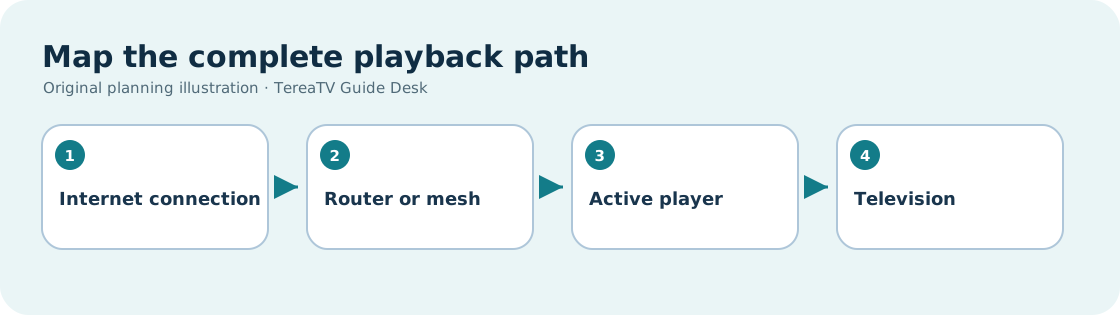
Start with a simple diagram of your own home. Draw the internet entry point, modem or gateway, router or mesh nodes, television, external streaming device if used, and any soundbar or receiver. Mark whether each link is wired or wireless. This sounds basic, but it prevents a common diagnostic mistake: calling the setup “wired” when the device is connected by cable to a wireless mesh node that itself relies on a weak radio connection to the main router. The final short cable can be working perfectly while the backhaul remains fragile.
Find the device that actually runs your IPTV player
Next, identify which machine actually plays the stream. If an app runs on a Fire TV, Google TV, Apple TV, or another box, the box's network connection matters more than the television's built-in Wi-Fi setting. If the player runs directly on the TV, inspect that TV's current network configuration. Do not assume that plugging a cable into a television will improve an external box connected over Wi-Fi. The screen displays the result; the active player retrieves the content.
Record model and software details before contacting support
Write down the model name, software version, and player name without posting credentials or private identifiers in a public comment. A provider support request should describe the active route and the observed symptom, not reveal a password. If the provider has a published supported-device list or setup guide, compare it with the exact model. A broad label such as “smart TV compatible” is not enough to establish that your regional app store offers the proposed player or that it accepts the required access method.
Finally, map who else uses the home network. A remote worker, game console, cloud backup, video call, or multiple televisions can compete for available capacity at the same time. This does not mean every pause is caused by the household. It does mean a test performed in an empty home at midday may answer a different question from your usual evening viewing. Keep the two circumstances separate in your notes.
What Ethernet changes for TereaTV viewing—and what it cannot change
A direct Ethernet cable between a playback device and a functioning router removes local Wi-Fi radio conditions from that device's last network hop. That can simplify troubleshooting because signal strength, neighboring wireless networks, and certain placement problems are no longer part of that segment. It can also make a living-room setup more predictable when the television is stationary. Google TV's own troubleshooting advice includes trying a cable connection when Wi-Fi is slow, alongside checking the wireless connection and router placement. Google TV troubleshooting
Ethernet does not create extra speed from an internet plan, repair an upstream outage, ensure that a provider has rights to content, or make an unsupported player compatible. If the router's connection to the internet is failing, both wired and wireless devices can be affected. If only one app has trouble while other permitted services on the same device work normally, that observation is a clue, not a verdict. The app, account, item, and provider may need separate examination. Keep a second service only as a controlled comparison when you are authorized to use it.
Check the device's actual port before buying cables or adapters. Some thin televisions and streaming sticks have no built-in Ethernet port. An adapter may have its own compatibility, power, and speed limits, so confirm support from the device maker before purchasing. A long cable should be routed safely and kept away from places where it can be tripped over or damaged. If the only feasible path requires a messy temporary cable across a doorway, wireless may be the better practical starting point even if a direct cable would be technically simpler.
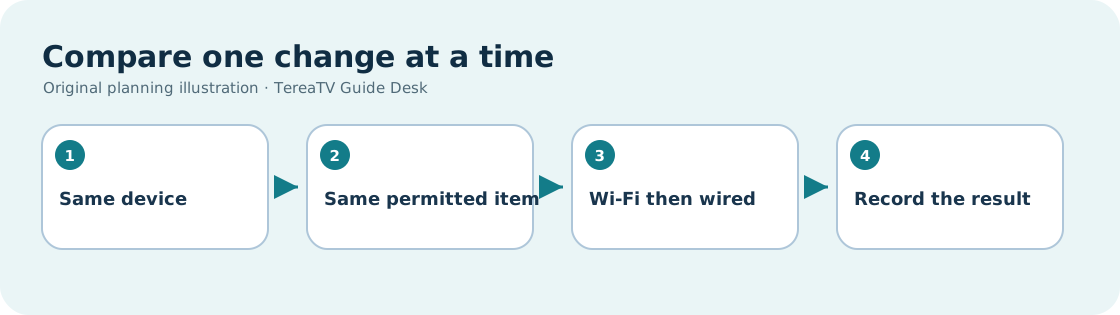
When you test Ethernet, change one variable at a time. Record a short baseline with the current Wi-Fi setup, connect the same device directly if supported, and repeat the same ordinary task under similar conditions. The value lies in isolating the local network hop. Do not switch device, player, subscription account, router, and television input in one attempt and then attribute every difference to the cable.
When Wi-Fi can be a reasonable choice for a US household
Wi-Fi is not a compromise by definition. It may be the intended connection for a streaming stick and the only sensible option in a rented apartment or a room far from the router. The right question is whether it works consistently in the device's real position for the household's relevant tasks. A connection icon showing several bars is not a full performance report, but it is a place to start. Check the connected network name, confirm the device has not joined a distant guest network, and observe whether other devices have trouble in the same room.
Router placement matters. A router hidden behind a metal cabinet or far from the television can create a different result from the same hardware on an open shelf. Google TV suggests checking the Wi-Fi connection, moving the router closer, and considering a 5 GHz network where the router makes one available. That advice is troubleshooting guidance, not a claim that 5 GHz will always outperform 2.4 GHz through walls. The better band depends on distance, obstructions, and local conditions. Google TV troubleshooting
If you use a mesh system, note which node the player reaches and how that node connects to the rest of the network. A weak link between mesh nodes can matter even when the device reports a strong connection to its nearest node. If a mesh app provides signal or backhaul diagnostics, use those observations without publishing private network details. A small move of the node can sometimes be a more relevant experiment than changing the subscription. Conversely, if the same device has trouble only with a particular item, moving equipment may distract from the actual question.
Do not follow anonymous instructions to disable security features or join an unsecured network to make streaming work. A private home connection should remain secure, especially when the player stores account details. If a seller insists on unusual network changes without explaining why, pause and ask for a supported setup path in writing.
Speed tests are clues, not promises about live playback
An internet speed measurement tells you about a particular test at a particular moment and device. It does not measure the legal availability of an item, the quality of a provider's source, or the usability of a player interface. Tests can vary with server choice, home traffic, the device's network hardware, and time of day. Treat one high reading as evidence that bandwidth was available during that test, not proof that every future live event will play without interruption.
As a reference point, Netflix recommends a stable connection of at least 15 Mbps for its own UHD/4K experience. That is Netflix guidance, not a TereaTV requirement and not a promise about all IPTV streams. Different formats, devices, and concurrent uses create different demands. Do not copy that number into a TereaTV sales claim. Ask the provider for its current guidance for the actual content and player you intend to use. Netflix connection recommendations
Look at stability and concurrency as well as headline speed. If several people watch, call, or download simultaneously, the home needs to support those combined activities. A very fast plan can still feel inconsistent when the router is overloaded or the relevant device has a poor radio link. A slower plan can be adequate for a modest household when its connection is stable and the simultaneous load is understood. The practical question is what happens during your usual viewing period, not which plan has the largest advertised number.
For a controlled comparison, record the test device, location, time, connection route, and whether other household traffic was active. Repeat only when the result would change your decision. Endless testing can create a false sense of precision while the underlying subscription terms remain unknown. Use a short log to decide whether to try a cable, move the router, contact the internet provider, or investigate the player.
TereaTV trial checklist: test the setup you might actually keep
If TereaTV currently offers a trial appropriate to your use, check the live terms before beginning. Confirm its duration, whether payment information is required, what content and features are included, how many connections are allowed, and what happens at the end. The offer can change, so this guide does not state a fixed trial price or guarantee that a trial is available today. The US Federal Trade Commission advises consumers to read free-trial and automatic-renewal terms, note cancellation deadlines, and keep records. FTC trial guidance
Use the trial to answer a defined question rather than browsing at random. A practical test sheet might include: Can the intended player install through an official route? Can you sign in using the method the provider supports? Can you locate permitted content important to your household? Does navigation work with the actual remote? Does the setup behave acceptably during your normal viewing hour? If two simultaneous screens matter, is that feature included in the specific plan and does it operate as described during permitted use?
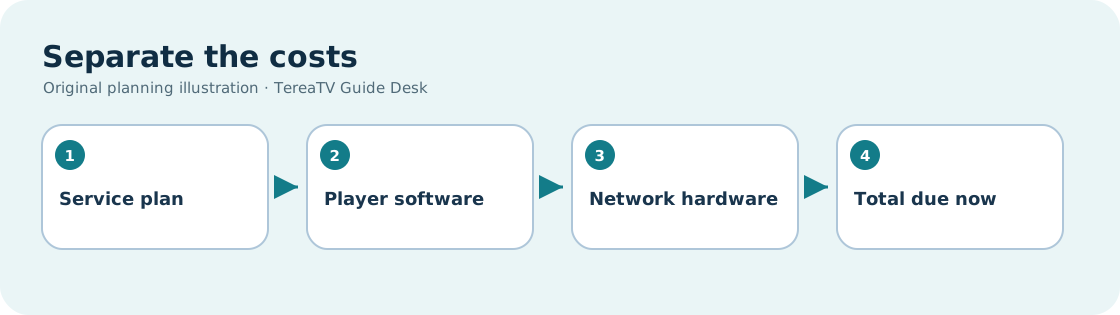
Run the trial on the device and network route you are likely to use after purchase. A trial on a phone over mobile data does not settle whether the living-room television works over its own Wi-Fi. If you are considering an external device, use that device during the trial. If the proposed player requires a separate purchase, account for that cost before judging the overall route. Keep hardware, player, and subscription payments on separate lines.
Document observations honestly. Record an app opening time or pause only if you personally measured it, and include context; do not turn a single observation into a generalized uptime percentage. When you contact support, provide the relevant device and route details privately. Never post credentials, complete payment records, or personal network information in a public forum. If your essential requirement cannot be verified during the trial, keep it marked “unconfirmed” rather than assuming a sales page covers it.
Compare live sports and films without inventing a channel list
Many buyers search for the “best IPTV for sports” or “best IPTV for movies,” but the meaningful question is specific. Which event, league, film, language, region, date, and device matter to you? Rights and catalogs can change. An image of a league logo, a broad channel number, or a title in an old screenshot does not guarantee access to a future event. Confirm the current authorized availability through the relevant official source and ask the provider a precise question about the current offer.
Network reliability is only one part of that decision. A stable Wi-Fi connection cannot supply content a plan does not include, and Ethernet cannot resolve a regional restriction. Conversely, a plan listing the desired item still needs a supported player and a workable home connection. Keep content, subscription permission, and delivery quality as three separate checks. This avoids attributing a missing item to a router setting or an interrupted stream to a missing right without evidence.
For a sports-oriented household, create a short event checklist before paying. Record the event date, the authorized service or channel you expect, whether the plan specifically includes it at that time, the intended device, and any extra screen requirement. If you cannot establish a critical fact, do not replace the answer with a broad claim about “all sports.” A short, verifiable list is more useful than a large promotional number that omits the one event you actually want.
For films and series, consider discoverability and playback controls as well as availability. Can the intended player search by title? Are subtitles or audio options important? Does the service distinguish rental, included, and unavailable titles? Do not promise a catalog size, language, or resolution unless the current provider information supports it. A careful guide can help buyers evaluate the experience without pretending to have independently audited a library.
A step-by-step buffering diagnosis for the same playback device
When a stream pauses, write down what happened before changing anything: device, player, item, time, connection route, and whether the pause affected one item or several. Check whether the same device can open another permitted streaming service. Then check whether another device on the same home network has a similar general connectivity problem. These comparisons help narrow the question. They are not a substitute for provider support or a technical measurement, but they prevent random settings changes.
Start with low-impact checks. Confirm the player is on the expected network and that the router is functioning for ordinary browsing. Follow the device maker's recommended update and restart steps if the symptoms persist. Google TV, for example, suggests checking Wi-Fi, system updates, and a device restart in its troubleshooting sequence. A factory reset is a much larger step that erases data; it should not be your first response to one short pause. Google TV troubleshooting
If the setup is wireless and the problem appears tied to location, compare it with a short, safe wired test where the device supports one. If there is no port, try a supported alternative or examine router placement rather than buying an unverified adapter. Keep the player and item constant as far as possible. A clear improvement after a route change is useful evidence about the local network segment, but it still does not prove that every future item will behave the same way.
If the problem appears only in one app or one item, contact the appropriate support team with the observation log. Provide the version and supported model, not your password. Ask whether there is a documented outage or player-specific issue. Avoid posting a public accusation or promotional “test result” based on an isolated symptom. A useful support report distinguishes what is confirmed, what is repeatable, and what remains unknown.
Multiple screens: check the plan before testing the network
A household may have enough internet capacity for several screens but only one permitted active connection under its subscription. It may also have a multi-connection plan but a weak Wi-Fi route to one bedroom. These are different limits. Check the current TereaTV plan terms for the permitted number of simultaneous connections, any per-device activation rule, and whether an additional screen costs extra. Do not infer the limit from how many devices can install a player.
When evaluating a second screen, start from permission. If the plan allows it, test during a realistic household period with the actual devices. Record which device begins first, which one pauses if there is a problem, and whether the issue is network-wide or confined to one room. Do not share credentials outside the permitted household or test through an unauthorized account. A paid extra connection should be judged against the household's actual simultaneous use, not purchased because it sounds flexible.
Budget for every component. Two televisions may need two player licenses, two external devices, or a network improvement even when one service plan covers two connections. Conversely, an existing supported device may make a new hardware purchase unnecessary. Ask for a written total price for the chosen term and any connection upgrade. Keep a clear renewal date for each charge, since player and provider payments may renew separately.
If a second screen is rarely used, consider whether a shorter plan or single connection fits better than a long multi-screen commitment. The answer depends on current terms and household behavior. This guide does not claim a TereaTV price or discount. View the current TereaTV offer and verify it before ordering.
Cost worksheet: choose a route, then compare the full commitment
Make three columns on paper or in a spreadsheet: service, player, and network or hardware. In the service column, record the provider, exact plan, length, permitted connections, taxes or fees shown at checkout, trial conversion terms, cancellation method, and renewal date. In the player column, record whether a separate app fee exists and whether it is one-time or recurring. In the hardware column, record the equipment you actually need, not every optional accessory an advertisement suggests.
Then compare like with like. A cable costing a small amount today may be easier than a new external device, but only if the current player is compatible and the cable route is safe. A higher-priced internet plan may be unnecessary if the actual problem is poor placement. A discounted annual subscription can cost more upfront than a monthly trial of the household's real requirements. Use full cash due today and total cost over the intended period, not a single headline monthly average.
As a hypothetical exercise, suppose one route needs a supported external box and a separate player license while another works directly on the television. Add all verified costs for the same period. If the cheaper route fails the household's essential task, its lower price is not a useful saving. If both routes work, choose on practical usability as well as cost. This is a method, not a claim about actual TereaTV pricing or a promise that one device will outperform another.
Keep links between guides purposeful. Our related Apple TV setup guide covers a different device decision, and the Samsung versus LG guide focuses on television-specific compatibility. Both are from the same promotional network. Use them only if they answer the device question you actually have.
Privacy, security, and authorized content checks
Protect your account while evaluating a provider. Use the provider's official checkout and support channels, confirm the address before entering payment information, and do not send credentials through a public social-media comment. A setup guide should identify a player and access method; it should not ask you to disable normal device protections or install software from an unexplained source. If a seller cannot explain what an app is and who publishes it, that uncertainty belongs in the purchasing decision.
Check the rights question separately from technical compatibility. An IPTV label does not by itself establish whether a specific channel, event, or film is authorized for a particular territory. Do not rely on a title count or familiar logo as evidence. Ask the seller for current rights and availability information relevant to your location, and prefer authorized sources for the content you value. Our site does not claim to have independently audited TereaTV's licensing.
Be cautious with access that requires sharing account details with unrelated third parties. If you need help, use a documented support path and provide only what is necessary to diagnose the problem. Save receipts, plan terms, and support replies privately. These records help if a trial converts, a renewal differs from what you expected, or you need to describe a repeatable technical problem.
Finally, keep comparisons proportionate. This guide promotes TereaTV, and our links are commercial. We have not measured every competing service or proven that TereaTV is the “best” for every US home. The useful outcome is a decision you can explain: a permitted service, a supported player, a tested network route, and clear terms you understand.
TereaTV Ethernet vs Wi-Fi decision worksheet
Before ordering, answer these questions in writing. Which device plays the stream? Does it support a documented official player? Which route connects that device to the router? Is the router itself dependent on a wireless mesh backhaul? What happens during the household's normal viewing hour? Which content and features are essential, and how are they confirmed? What amount is due now, what renews later, and how is cancellation handled? What support evidence can you provide without exposing private information?
If the device supports a direct cable and you can install it safely, use it as a controlled comparison when Wi-Fi is unstable. If Wi-Fi works in the real room at the real time with the real player, there is no reason to buy a cable solely to satisfy a slogan. If both routes fail, investigate the upstream connection, player, permitted item, and provider support. If only one item fails, do not rebuild the household network before confirming the item's current availability and status.
The buying decision follows the evidence. A short trial with documented tasks can be more informative than a long promotional comparison. Review the current TereaTV plans and setup information, ask specific questions about your device and authorized content, and keep the answers with your purchase record. This page is guidance from a promotional publisher, not an independent test or guarantee of future service quality.